
How to Turn Off Safe Mode on Android
Learn using the step-by-step guide, how to turn off, disable or exit the Safe mode.
I am a regular reader of Android forums, the other day, I passed by a thread where some users were having issues and were stuck at safe labeled screen. So I thought why not write a complete guide for beginners, discussing what it is and how to enable and disable it on a phone or tablet.
It is one of the most useful features to troubleshoot issues with your Android device. However, in some cases, it can be frustrating. If you or kids have accidentally booted your device into safe mode, and you’re stuck with it, don’t worry our complete step-by-step guide will help you to get your device back to normal mode.
What is Safe Mode?
The purpose of using this useful feature of Android, it is to analyze, troubleshoot and diagnose issues with your phone. For example, if your device is draining the battery faster, data usage is unusual, or it could be any other issue, just boot into troubleshooting mode, and you’ll get to know if the problem is still happening.
Also read:
- Fix an error has occurred while updating the device software
- How to root Pixel 7 with Magisk
- How to Flash Factory Image on Google Pixel
5 Ways turn off Safe Mode
I hope you’ve learned so much about this unique feature, now when you have a basic idea of what it is, now let’s move on and find out how you can get rid of it if in case you’re stuck and don’t have a way or ideas to get rid of it.
The easiest way to get out of safe mode is by restarting or rebooting your phone or just pull down the notification bar and tap to disable as shown in the picture below:
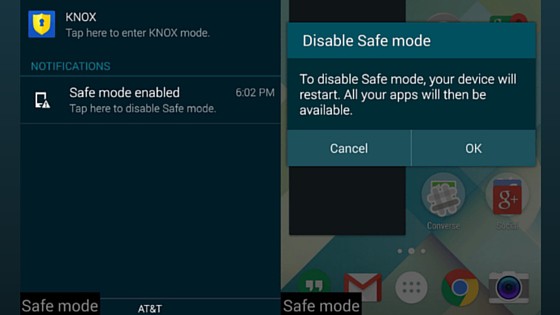
To disable Safe Mode, your device will restart. All your apps will then be available.
Now to disable it, you’ll have to reboot /restart your device. All your apps will then be available. However, I have received many messages and saw on many Android forums where users were unable to fix the issue by normal reboot method. Therefore I have further instructions for those guys who failed to turn off this feature on their smartphone or tablet. Follow the instruction below, if you’re one of those users.
I would suggest you the following methods to get your phone off safe mode:
1. Normal reboot
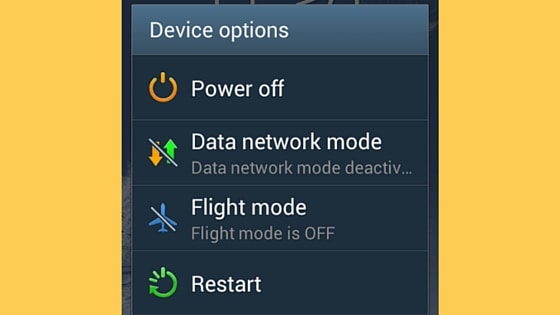
As I said earlier, just reboot your phone normally. Just hold the Power button and tap the Restart button.
2. Power and Volume up
If the above trick does not help you to fix the issue, turn off your phone. Hold the Volume up + Power buttons to boot your phone. Alternatively, you can also try the Volume down + Power combination.
3. Remove battery
If you’ve got removable battery device, then here is another trick that I found it useful in some cases, you can also try removing the battery for a while and reinsert to reboot your phone, and hopefully it helps you to get out of this scary mode!
4. Factory reset
Sometimes, resetting your phone to factory settings also does some wonders, if above method hasn’t worked for you shout try this fix:
- Go to phone settings.
- Under the personal tab, tap Backup and Reset.
- Then select Factory data reset, this option will reset all settings and delete all data on the device.
- That’s it, your phone will now reboot with factory or default settings.
5. Hard reset
The final solution is to hard reset your phone. Please note that every phone /tablet brand has its own way of entering into recovery mode, just like HTC, Motorola, Google Nexus, LG and Sony Xperia. If you don’t know, you can search it.
Follow these instructions to hard reset any Samsung Galaxy, Note or Tab device:
- Power off your phone.
- Hold down the Vol up+Home+Power at the same time until your get the recovery options.
- Use the Vol up/down keys to move between different options, power button to select.
- Select wipe data/factory reset.
- Finally reboot system now.
Did you find it helpful? Your feedback is always welcome, it will help us to improve and write more quality stuff.

